
Public Wi-Fi is convenient when you are at a café, airport, hotel, library, or other shared space. It lets you browse the web, check email, and stay connected without using mobile data. However, public networks can also create privacy and security risks, especially when they are poorly configured or designed to imitate a trusted network.
You do not need to avoid public Wi-Fi completely. A few simple habits can help protect your personal information and make your connection safer.
Understand the Risks of Public Wi-Fi
When you connect to a public network, your device communicates through networking equipment that you do not control. Other people may also be connected to the same network. If the network is not properly secured, attackers may try to monitor activity, redirect users to fake websites, or access poorly protected devices.
Common risks include:
– Fake networks using names similar to a legitimate business
– Websites that do not use secure connections
– Automatic connections to unknown networks
– Attempts to steal login details through fake sign-in pages
– Unwanted file sharing between connected devices
– Malware delivered through deceptive links or downloads
These risks do not mean that every public Wi-Fi network is dangerous. They simply highlight why it is important to use public connections carefully.
Confirm the Network Name
Before joining a public network, ask an employee or check an official sign for the correct network name. Do not assume that the strongest signal is the legitimate one.
Attackers can create networks with names such as “Free Cafe Wi-Fi” or a variation of a nearby business name. These networks may look convincing but can be used to collect information about connected users.
Also check whether the network requires a password or a browser-based sign-in page. If the instructions seem unusual, ask staff for clarification before connecting.
Forget the Network When You Leave
After using public Wi-Fi, remove the network from your device or select the option to forget it. This helps prevent your phone or computer from automatically reconnecting the next time the same network name appears nearby.
On most devices, you can find this option in the Wi-Fi settings. Removing saved networks that you no longer use is a good regular privacy habit.
Use a Virtual Private Network
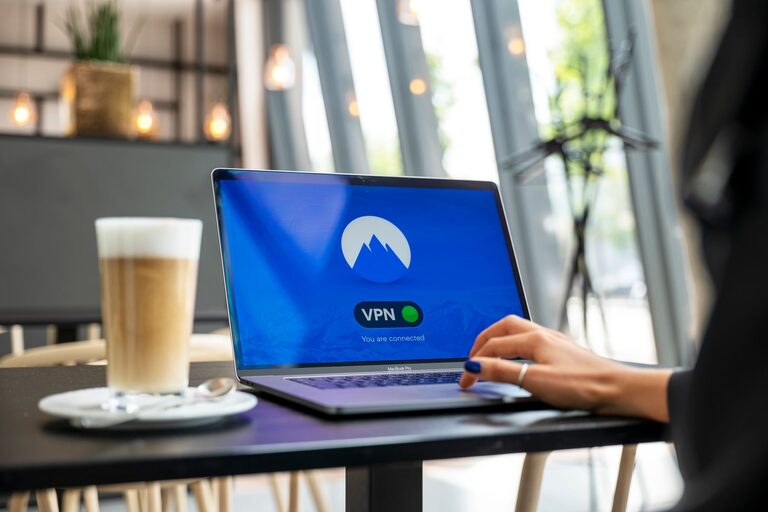
A virtual private network, commonly called a VPN, creates an encrypted connection between your device and a VPN service. This can make it harder for people on the same public network to view your online activity.
A VPN is especially useful when using an unfamiliar network. Choose a reputable provider with clear privacy policies. Be cautious with free VPN services, as some may collect information, show advertisements, or provide limited protection.
A VPN is not a complete security solution. It does not prevent phishing, protect weak passwords, or guarantee that every website is safe. Use it alongside other protective habits.
Look for Secure Websites
When entering personal information online, check that the website uses HTTPS. Most modern browsers show a padlock or similar security indicator next to the website address.
HTTPS encrypts the connection between your browser and the website. It helps protect information as it travels across the network, including passwords and messages.
However, HTTPS does not prove that a website is legitimate. A fake website can also use HTTPS. Always check the full web address for misspellings, unexpected words, or unusual domain names before signing in.
Avoid entering sensitive information on websites that display security warnings or use an address that begins with only “http” rather than “https.”
Avoid Sensitive Activities on Unknown Networks
If a public network seems questionable, postpone activities that require personal information. For example, consider waiting until you can use a trusted home network or your mobile data connection before:
– Signing in to important accounts
– Uploading private documents
– Sending confidential messages
– Entering identity information
– Downloading unfamiliar software
– Changing account security settings
If you must complete an important task, use a trusted VPN, confirm the website address, and sign out when finished.
Turn Off Automatic Connections
Many phones and computers can automatically connect to available Wi-Fi networks. This feature is convenient, but it can also connect your device to a network you did not intend to use.
Review your device settings and disable automatic connection to open networks. You can still connect manually when needed. Also turn off Wi-Fi when you are not using it, particularly while moving through unfamiliar areas.
This reduces the chance of accidentally joining a suspicious network and can help preserve battery life.
Keep Your Devices Updated
Operating system and app updates often include fixes for security problems. Install updates for your phone, tablet, computer, web browser, and security software as soon as practical.
Enable automatic updates when that option is available. If your device is no longer supported by its manufacturer, consider replacing it or limiting the types of information you access on it.
Before connecting to public Wi-Fi, make sure your device has a screen lock and that basic security features are enabled.
Disable File Sharing
File sharing can make it easier for devices on the same network to exchange documents, but leaving it enabled on public Wi-Fi may expose files or folders unintentionally.
Before using a shared network, turn off file sharing, printer sharing, and other discovery features unless you specifically need them. Many computers offer a public network setting that automatically applies stricter sharing rules.
If you use a work or school device, follow the organization’s security instructions instead of changing settings on your own.
Use Strong, Unique Passwords
A strong password helps protect your accounts if someone attempts to guess or steal your login details. Use a different password for each important account. That way, a problem with one service does not automatically put other accounts at risk.
A password manager can help create and store unique passwords. You should also enable multifactor authentication whenever it is offered. This adds another verification step, such as a code from an authenticator app or a security key.
Even with these protections, avoid signing in through links sent in unexpected messages. Open the official app or type the website address yourself.
Watch for Suspicious Prompts
Public Wi-Fi sign-in pages can sometimes ask users to install software, browser extensions, or security certificates. Be cautious with these requests. A normal network access page generally should not require unknown software to be installed.
Do not accept unexpected browser notifications, download prompts, or login requests. If a page looks unusual or repeatedly redirects you, close it and disconnect from the network.
If you entered a password on a suspicious page, change it from a trusted connection and review the account for unusual activity.
Disconnect and Sign Out
When you finish using public Wi-Fi, sign out of websites and apps, close browser windows, and disconnect from the network. This is particularly important on shared computers, where the next user may be able to access an open session.
Avoid saving passwords in a browser on a public computer. If you must use one, use private browsing where appropriate and clear your activity before leaving. Private browsing does not make you anonymous, but it can help prevent local browsing data from being saved.
Consider Using Mobile Data
For especially private tasks, a mobile hotspot or cellular connection may be a better choice than public Wi-Fi. Your mobile provider’s network is separate from the shared local network, and a personal hotspot lets you connect your own devices directly.
Use a strong hotspot password and turn the hotspot off when you are done. If you use a public USB charging station, consider using your own power adapter and cable to avoid unnecessary data connections.
Make Safe Habits Routine
Public Wi-Fi can be useful when you combine convenience with caution. Confirm the network name, use secure websites, keep your devices updated, disable unnecessary sharing, and avoid entering sensitive information on networks you do not trust.
A VPN, strong passwords, and multifactor authentication can add extra protection, but careful decisions remain just as important. By making these steps part of your normal routine, you can enjoy public internet access while reducing the chance of exposing your personal information.
About the Author